

NOVA Monitor
How to build your own crypto market dashboard with NOVA Monitor: many small windows on one screen, each with its own exchange, market, timeframe, sort metric, filters and colors, saved in your browser.
The screener shows one view at a time. NOVA Monitor shows many views on one screen. Each window is its own little screener, and you decide what it watches: one exchange, one market, one timeframe, one sort metric. Put a few of them side by side and the whole market fits on one screen.
NOVA Monitor works without an account. Your layout is saved in the browser, so it is there the next time you open the page.
Watch the short video below, or skip it and follow the written steps under it. Both cover the same ground, and every step here comes with a screenshot.
What a monitor window is
A window is one question you ask the market, answered live. For example "top volume spikes on futures in the last 5 minutes", or "biggest gainers on spot over 1 hour". Every window has its own:
- Exchange and market: spot, futures, spot only or futures only.
- Timeframe and sort metric: the same choices as in the screener's top bar.
- View: blocks, charts or a list.
- Filters and a blacklist, so the window only shows what you care about.
Windows update in real time, all of them at once.
Add your first window
- Open the menu and pick NOVA Monitor.
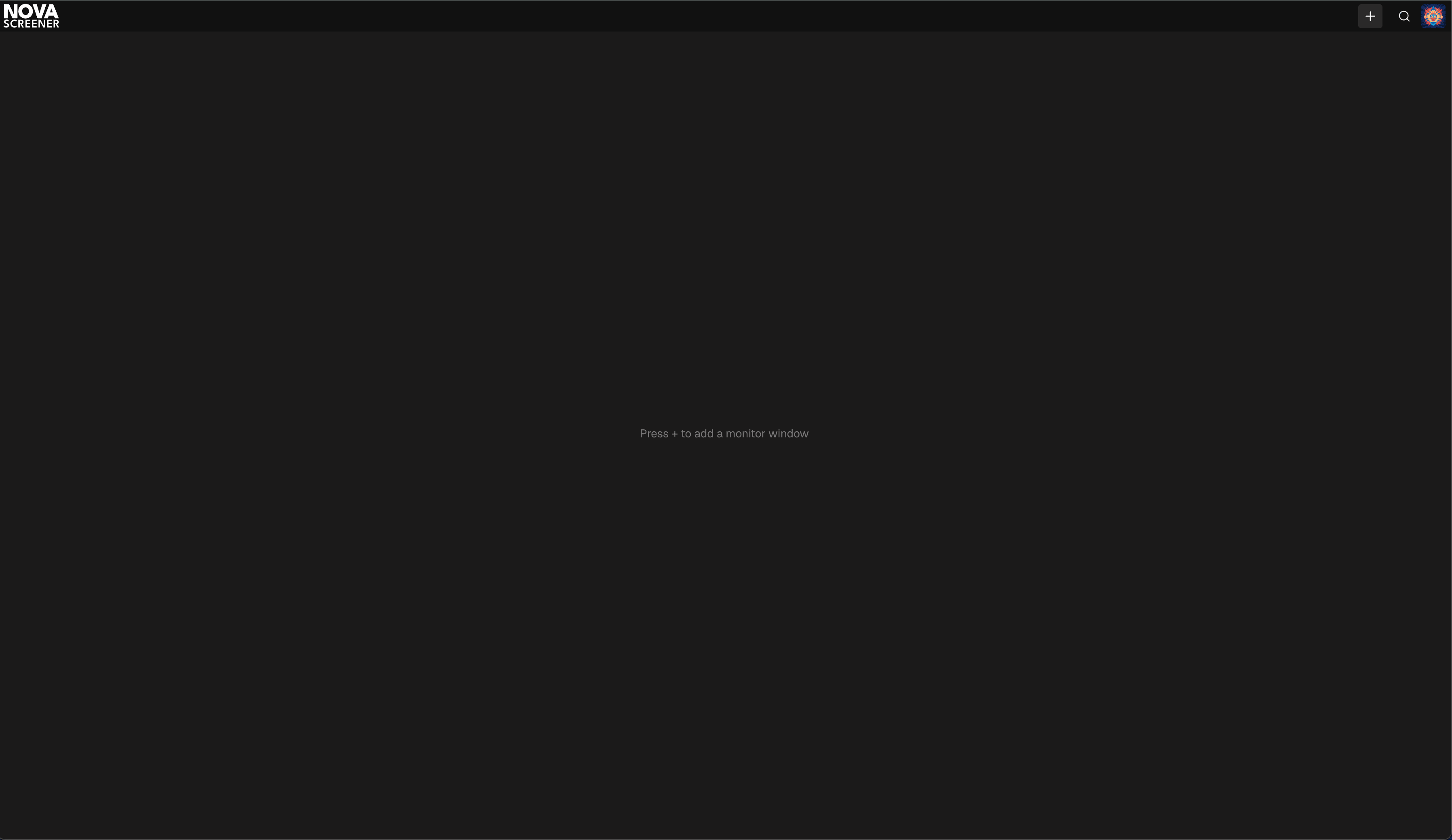
- Press the plus button. The empty page tells you to do exactly that.
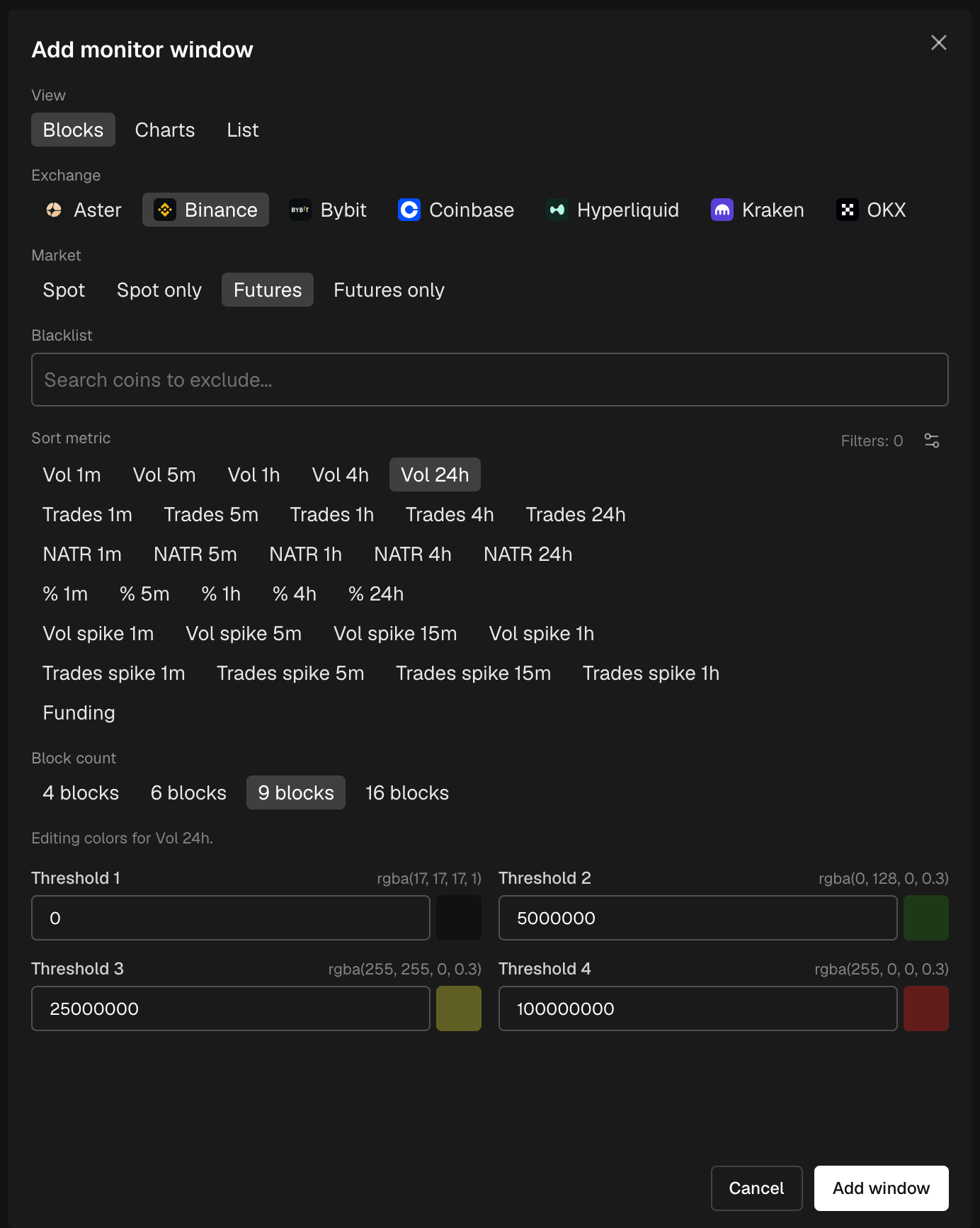
- Choose the view, then the exchange, market, timeframe and sort metric.
- Set how many items the window shows: 4, 6, 9 or 16 blocks, or the item count for a list.
- Click Add window.
Three views
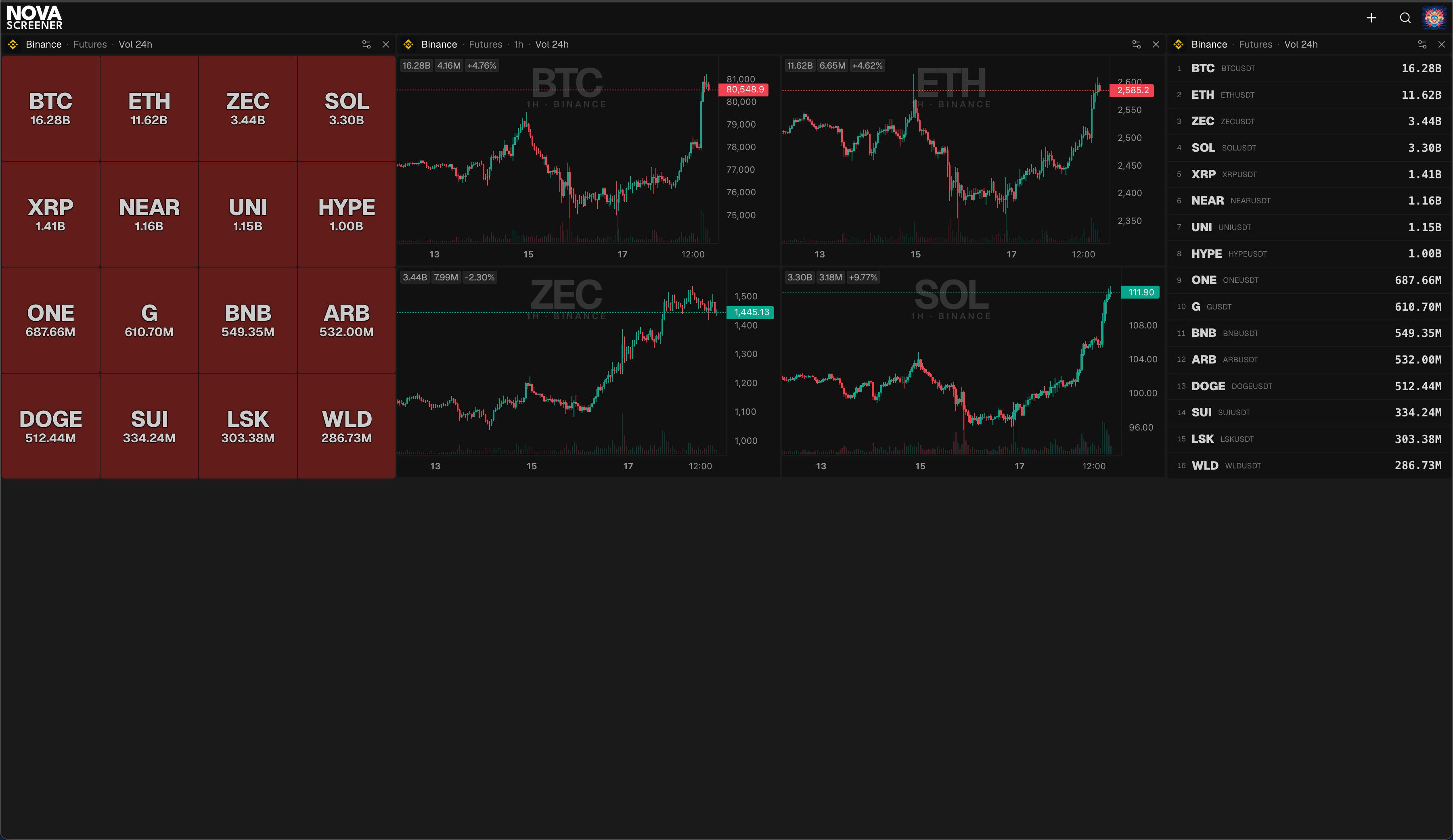
Pick the view that fits the question:
- Blocks: compact colored tiles with the ticker and the value. The most windows per screen, and the color tells you the size of the number before you read it.
- Charts: mini charts, like the main grid. Use it when you want to see the shape of a move, not only the number.
- List: a plain table, ticker and value per row. Best for a long ranking, like the top 16 by 24 hour volume.
Colors you can read from across the room
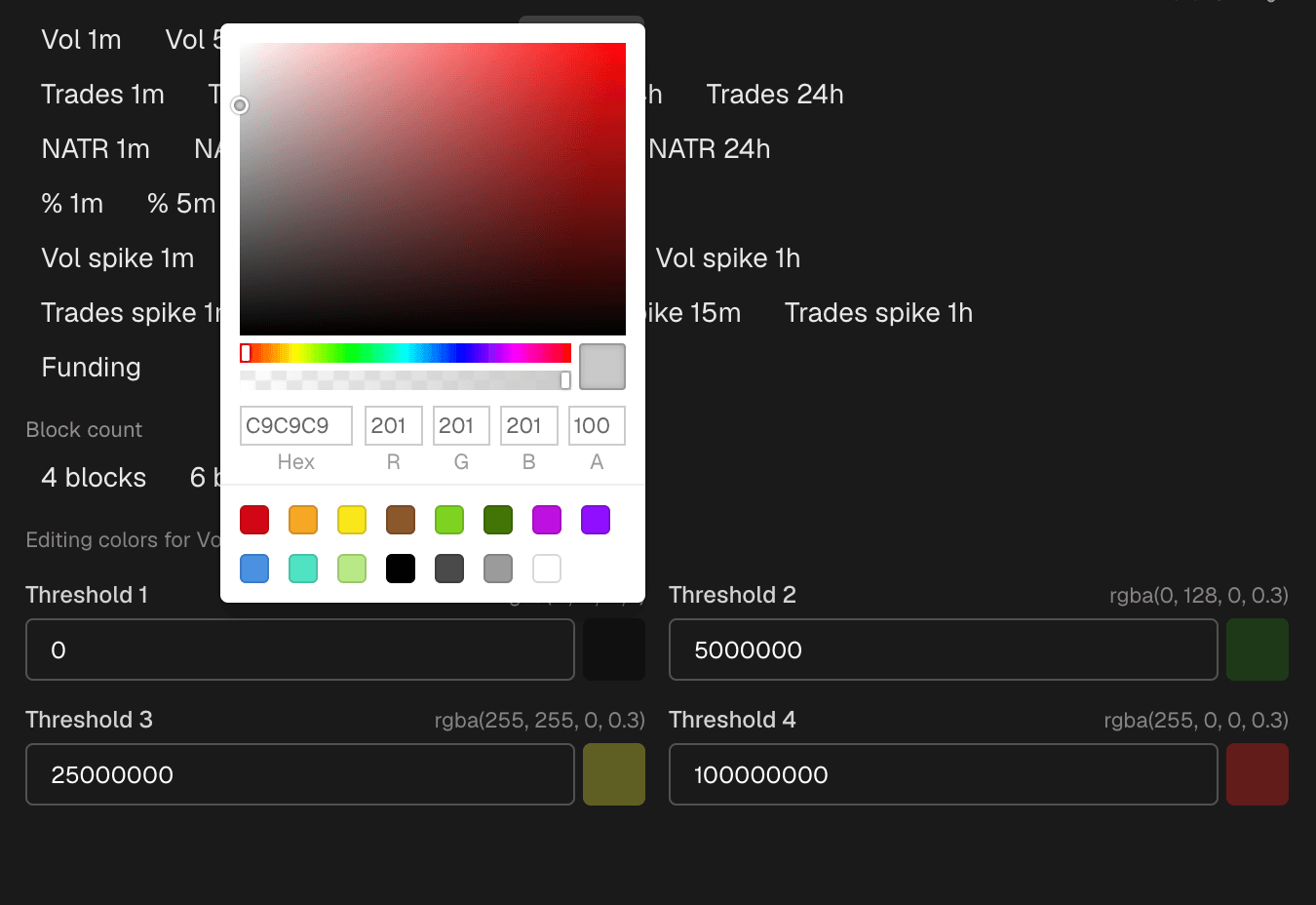
Blocks change color with their value. There are four levels, Threshold 1 to Threshold 4, and each one starts at a value you set. Thresholds have to go up from level to level, so a small value stays neutral, a bigger one turns green, and the biggest ones turn yellow and red. Those are the default colors; you can pick your own for each level.
The thresholds belong to the metric, so a window sorted by 1 hour change can go red at 5 percent while a window sorted by volume goes red at 100 million.
Tip: set the red threshold to the number that would make you act, not to the biggest number you have ever seen. Red should mean "look now".
Filters and blacklist per window
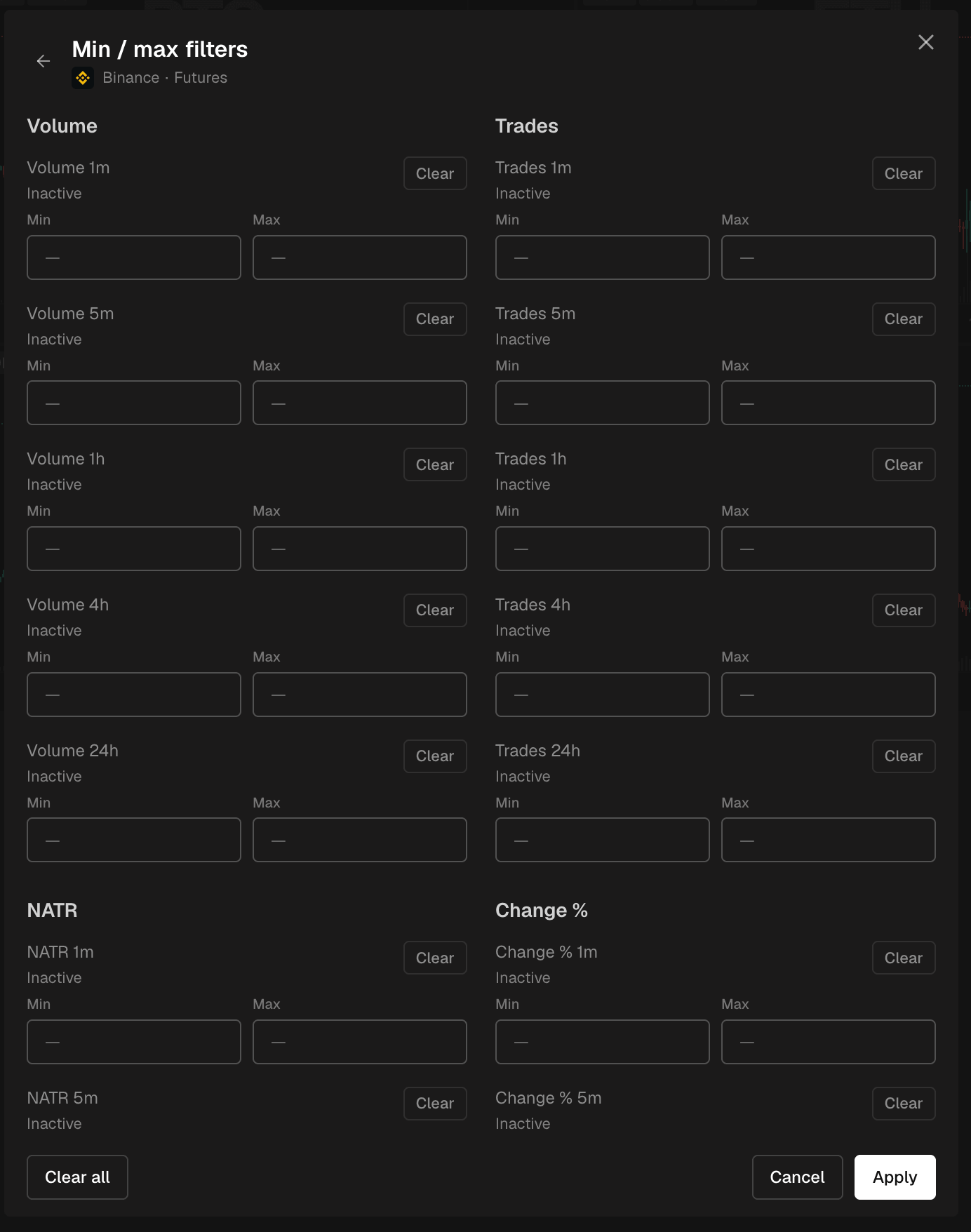
Every window has its own min and max filters and its own blacklist, in the window settings. So one window can be "futures, volume spike, but only coins with real 24 hour volume", and the next one can be "spot, gainers, without the stablecoin pairs". Nothing you set in one window touches the others.

Arrange the screen
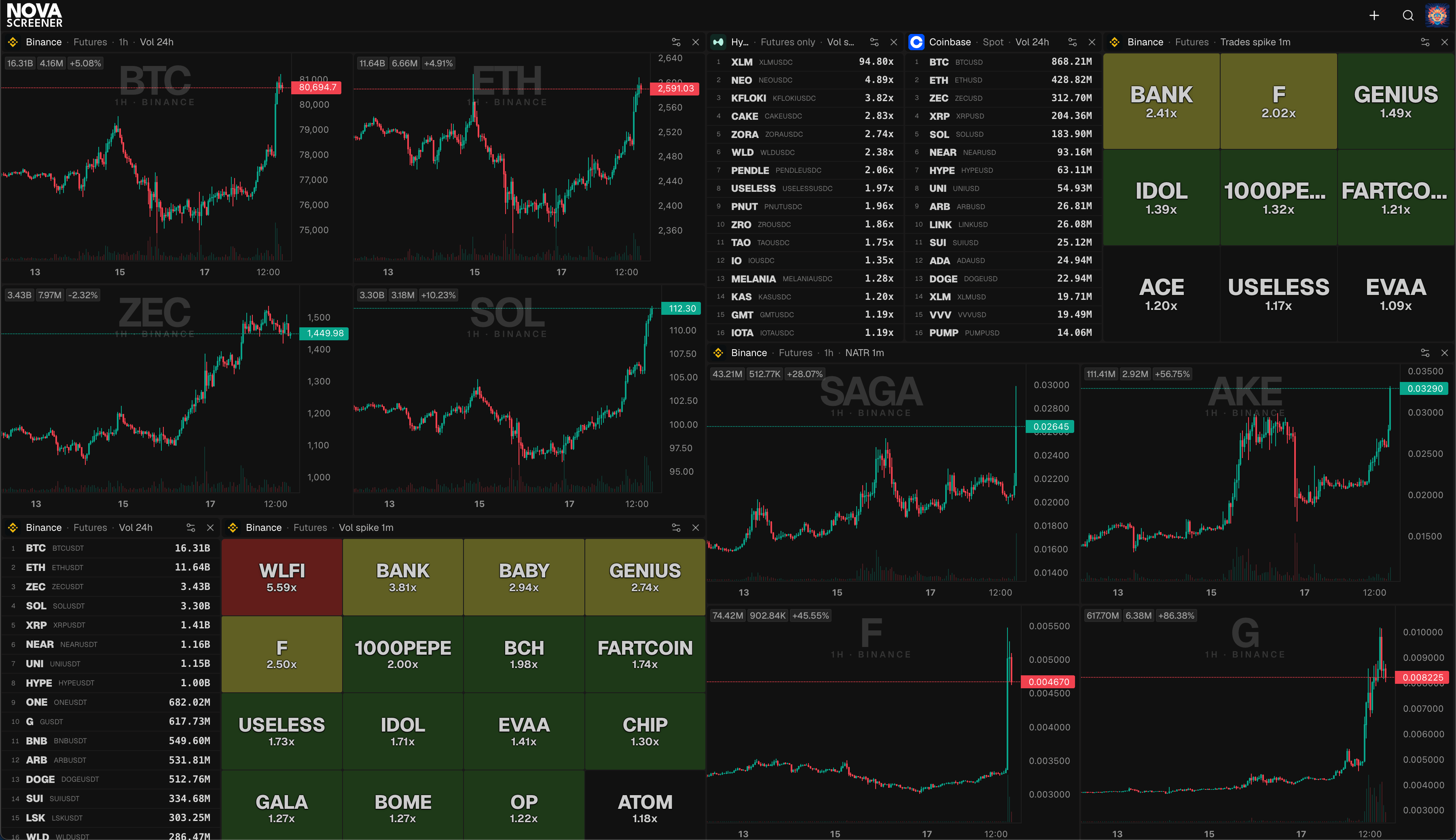
Every window can be moved and resized. Drag it by its header to any spot on the page, and pull its corner to make it as big or as small as you need. Windows snap to a grid, so the layout stays tidy.
To change what a window watches, open its window settings from the header. To remove it, use Delete window in the same place.
Same clicks as the grid
In every view, left click on a coin copies the ticker name, and right click opens the full chart. So the monitor is not only for watching: the moment something lights up, you are one click from the chart and one paste from your exchange.
Your layout is saved
The monitor keeps your windows, their settings, sizes and positions in your browser. Close the tab, come back tomorrow, and everything is where you left it. It is saved per browser, so a second computer starts with an empty page.
An example dashboard
A setup that covers a whole trading session on one screen:
- Blocks, futures, volume spike 5m. Red threshold high. This is the "something is happening right now" window.
- Charts, spot, change 1h, 9 charts. The shape of the moves behind today's gainers.
- List, futures, volume 24h, 16 items. The big liquid names, always in view for context.
- Blocks, spot, change 24h. The day's leaders and losers at a glance.
Tip: keep the spike window at the top left. It is where your eyes go first, and it is the window that changes most often.
Frequently asked questions
Do I need an account for NOVA Monitor?
No. The monitor works without logging in. Your layout is saved in the browser, not in an account.
How many windows can I add?
As many as fit on your screen. Each window has a minimum size, so on a laptop four to six windows is comfortable, on a large screen many more.
Does the monitor use the same data as the screener?
Yes. Same exchanges, same metrics, same live updates. A monitor window is a screener view in a small frame.
Can I use the monitor on a second screen?
Yes. Open NOVA Monitor in its own browser window and move it to the second screen, and keep the screener or the extended chart on the first one.