

Price alerts
How to set a crypto price alert in NOVA Screener: pick a level on the chart or in the list, get notified in the browser with a sound or in Telegram, and manage your alerts in one place.
A price alert watches one coin for you. You pick a price level, and when the price crosses it, NOVA Screener tells you. No more keeping a chart open all day waiting for a level to hit.
Price alerts are free. You only need to log in, so your alerts are saved to your account and follow you between devices.
Watch the short video below, or skip it and follow the written steps under it. Both cover the same ground, and every step here comes with a screenshot.
Create an alert on the chart
The fastest way to set an alert is right where you are looking at the price.
- Right click a chart in the grid to open the extended chart.
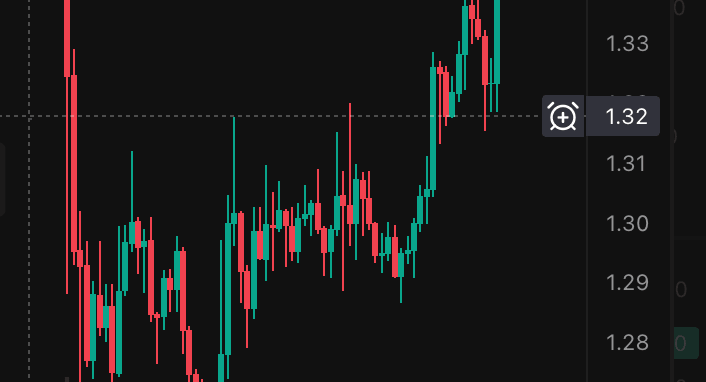
- Move the mouse to the price level you want.
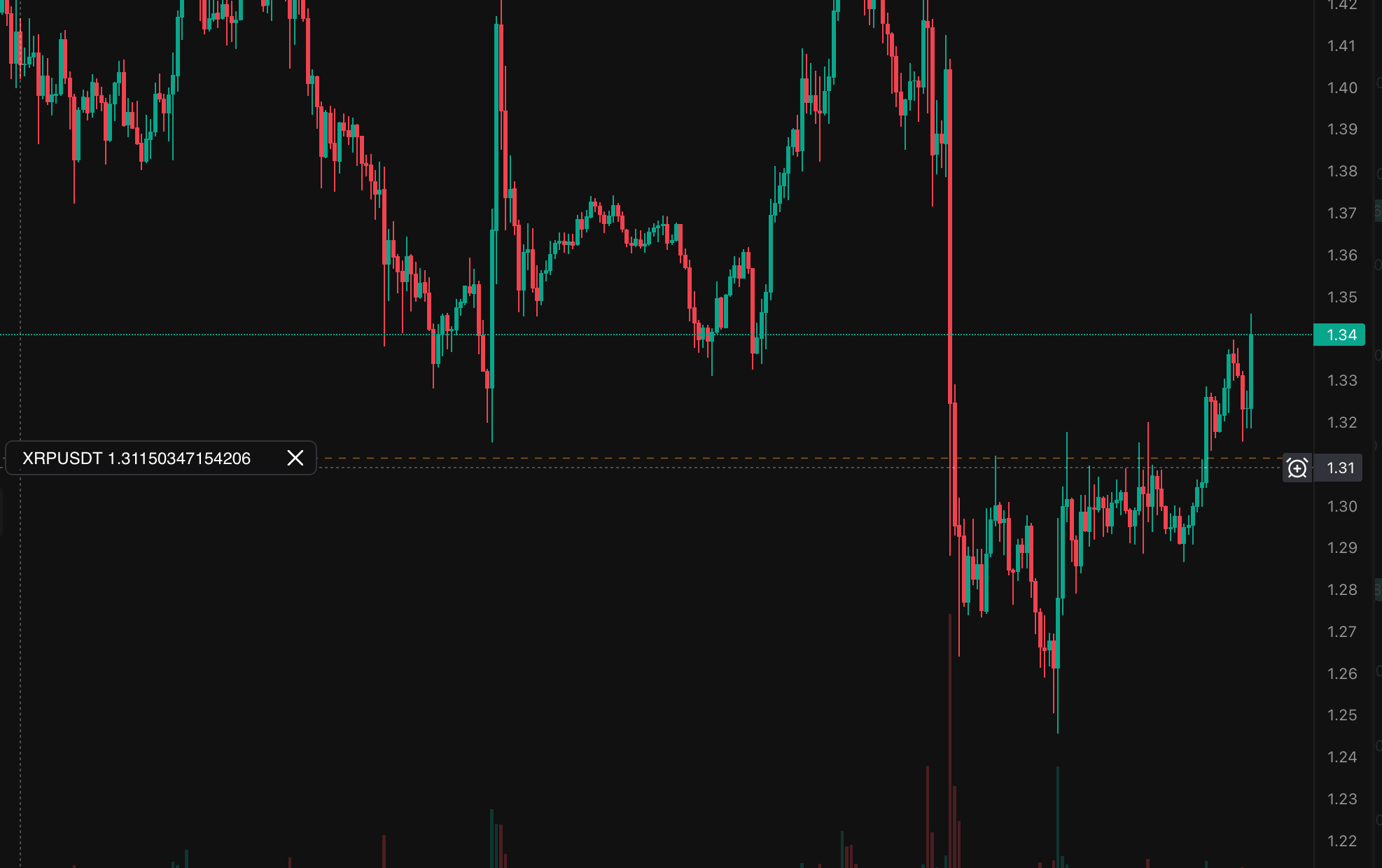
- Click the small alert icon that appears next to the price scale.
The alert is created at that price, and you can see it as a dashed line on the chart with its label. From now on the line is your marker: you always know where your alert sits compared to the current price. The small cross on the label removes the alert again.
Tip: set the alert a little before the level you actually care about. You get the notification while the move is still on its way, not after it is done.
Create an alert from the list
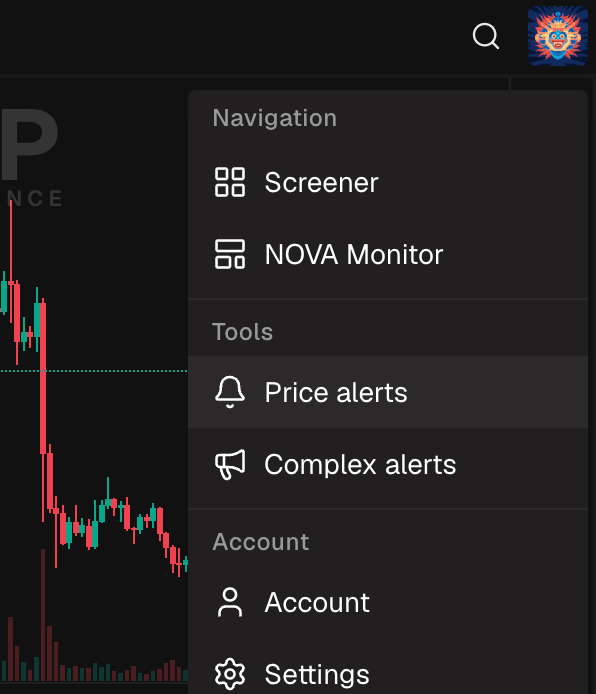
You can also manage alerts from the menu. Open the menu and pick Price alerts. You will see all your alerts in one list.
To create a new one here:
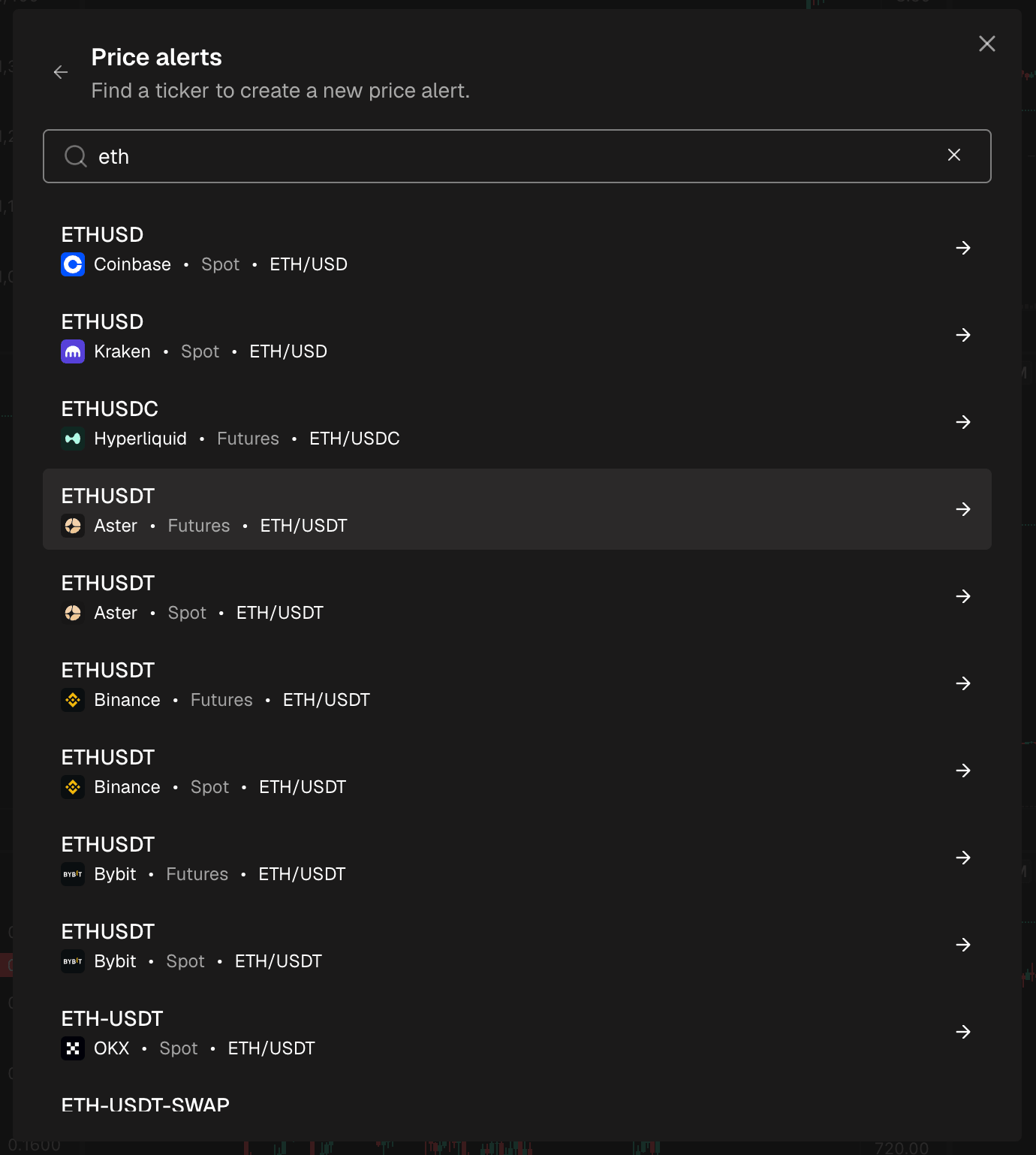
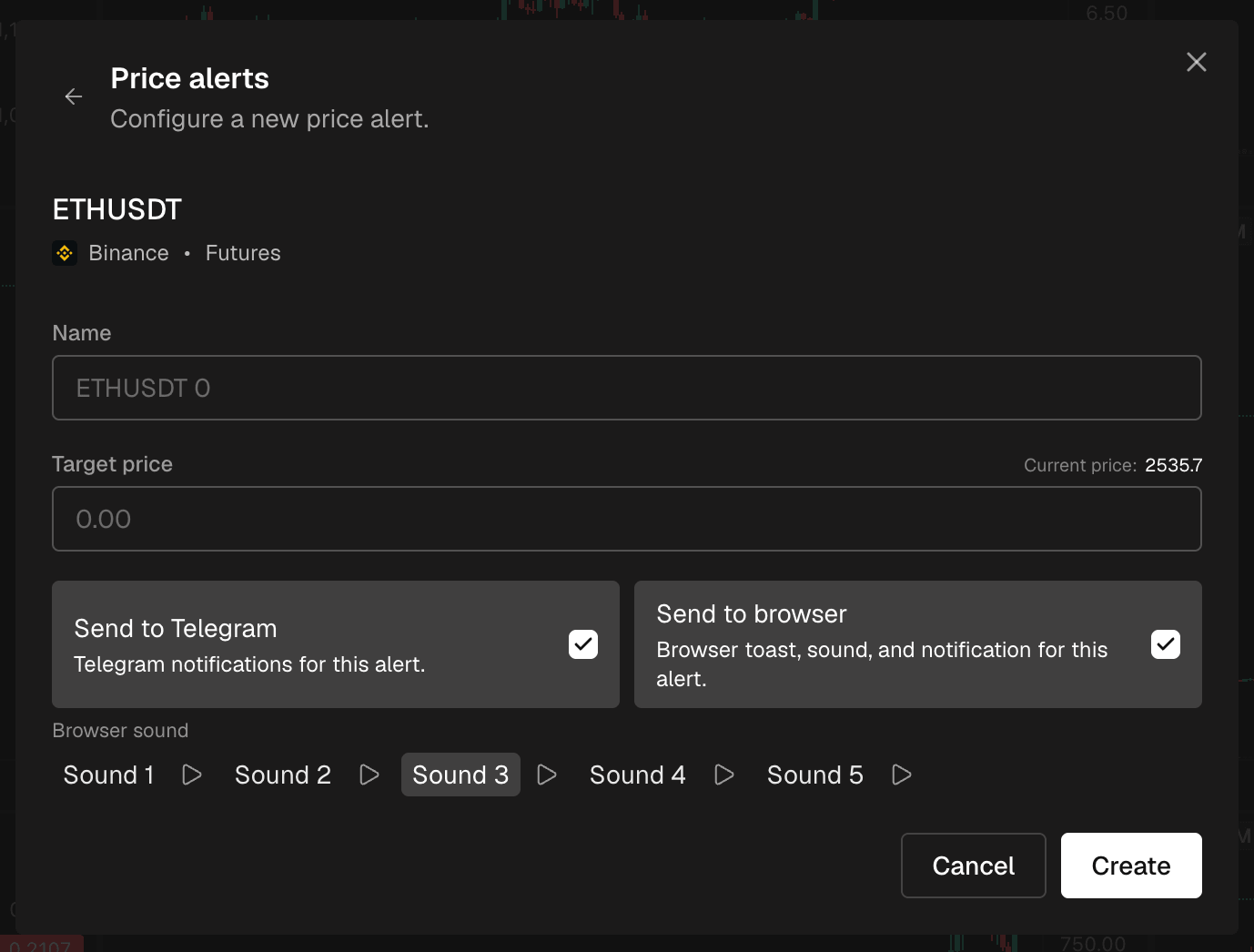
- Search for a ticker. The list shows every exchange and market the coin trades on, so pick the one you want.
- Set the target price. The current price is shown next to it, so you can see how far away your level is. The name is filled in for you, but you can change it.
- Click Create.
Choose how you get notified
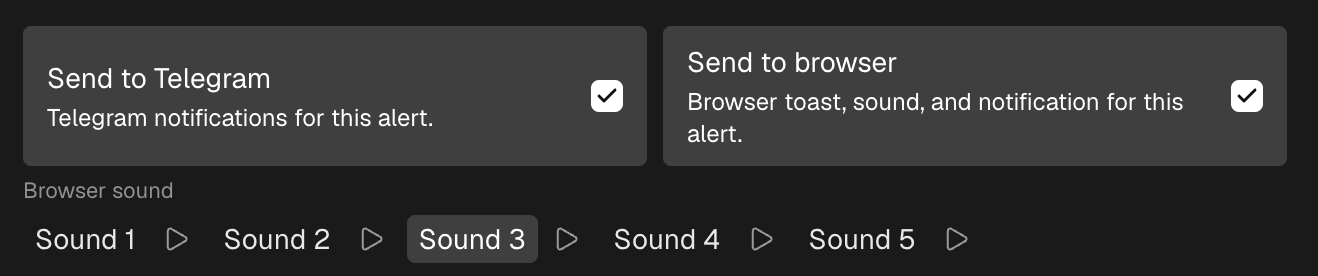
For every alert you choose how you want to hear about it. You can turn on one or both:
- Browser: a notification in the corner of the screen and a sound. You can pick the sound and play it first to hear it.
- Telegram: a message from the NOVA Screener bot, so you get the alert even when the site is closed.
Connect Telegram once
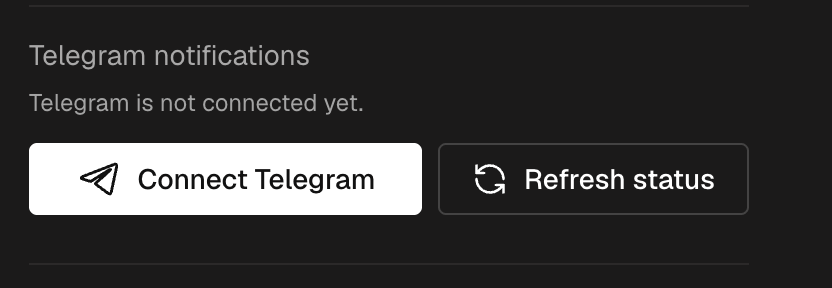
Telegram alerts need a one-time setup. Open Settings, go to Account, and click Connect Telegram. A link to the bot opens. Press Start in the bot chat, and the connection is done. After that, every alert can send a message straight to your Telegram.
Tip: turn on Telegram for the alerts that matter most. Browser notifications only work while NOVA Screener is open in a tab. Telegram reaches you anywhere.
When the price crosses your level
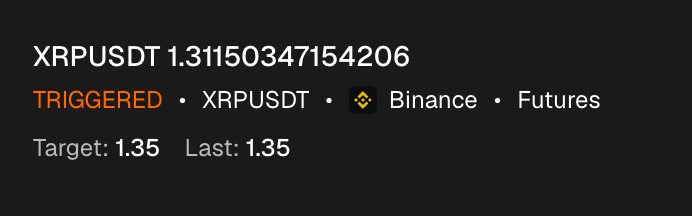
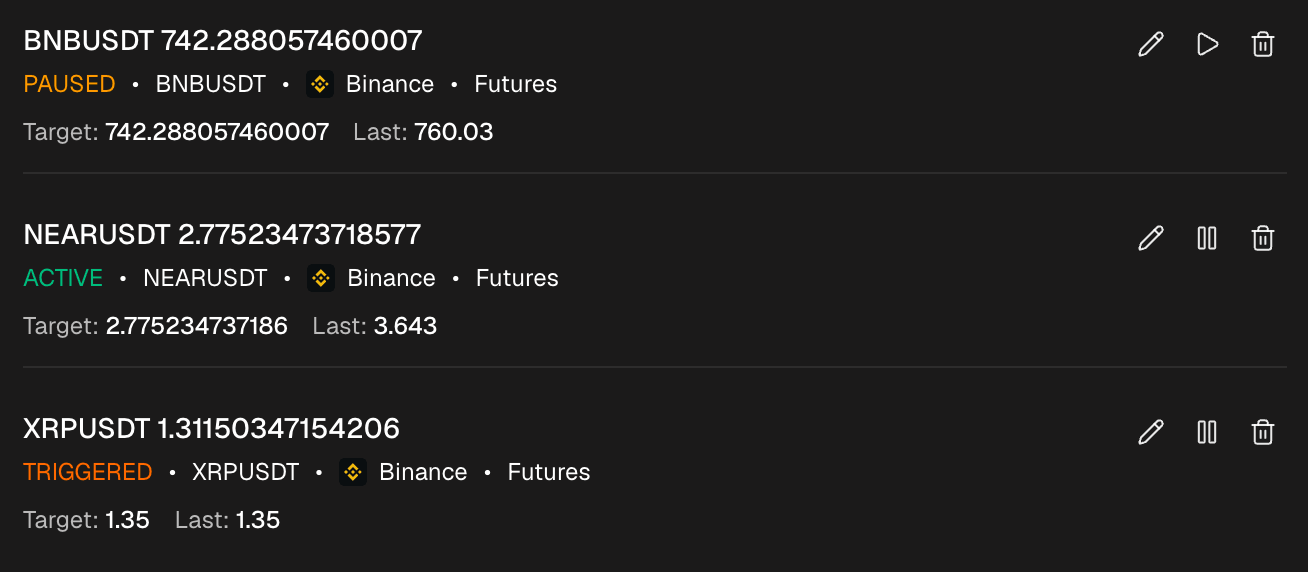
The moment the price crosses your level, the alert fires. You get your notification, and the alert is marked as Triggered in the list, with the target price and the last price next to it.
Manage your alerts
The Price alerts list shows all your alerts, active, paused and triggered, with the target price and the current price for each. For any alert you can:
- Pause it, when you want to keep the level but stay quiet for a while.
- Resume it later, exactly as it was.
- Edit the target price.
- Delete it, here or with the cross on its label on the chart. The line disappears with it.
Frequently asked questions
Are price alerts free?
Yes. Price alerts, complex alerts, the monitor and the screener are all free.
Do I need an account?
Yes, for alerts. The screener itself works without one, but alerts are saved to your account, so you need to log in to create them.
Do alerts work when the site is closed?
Telegram alerts do. Browser notifications need NOVA Screener open in a tab. If you want alerts on your phone or away from the desk, connect Telegram.
Can I set alerts on futures?
Yes. You can set a price alert on any coin the screener shows, on spot or futures. The alert follows the exchange and market you picked it on.